MOSS-Image Prompt Guide: Chinese and English Text in Images
Write MOSS-Image prompts that render clean Chinese and English text: describe the finished image, quote the exact words and control line breaks. With examples to try.
This is an unofficial guide. MossImage Studio is a community site and is not affiliated with OpenMOSS. The rules below come from the official MOSS-Image user guide, the prompt enhancer skill OpenMOSS published, and the ComfyUI documentation, checked on October 25, 2026. The example prompts are ones we ran through MOSS-Image-SFT with the same settings as our generator, shown with the images they made.
MOSS-Image, the open-source 5B text-to-image model OpenMOSS released on October 16, 2026, is best known for one thing: the text in its images is readable, in English and in Chinese. Getting that reliably is mostly about how you write the prompt. Here is what works, and why.
How MOSS-Image reads a prompt
- It was trained on captions. Long, detailed descriptions of images, not instructions. So it responds best to a description of the finished picture.
- It accepts three formats: natural language, tag sequences and JSON layouts.
- Prompts can be long: up to 4K tokens. (Our generator accepts up to 2,000 characters, which is plenty for a detailed poster.)
- English works best for the description. The user guide recommends English because it has the most training data. Chinese and other languages are supported, and the text you want rendered stays in its own language.
1. Describe the finished image, not the request
Write what the picture looks like, not what you want done. The ComfyUI docs put it simply: "Describe the finished image, not the request."
- Weak: Make me a poster for a night market festival with a Chinese title.
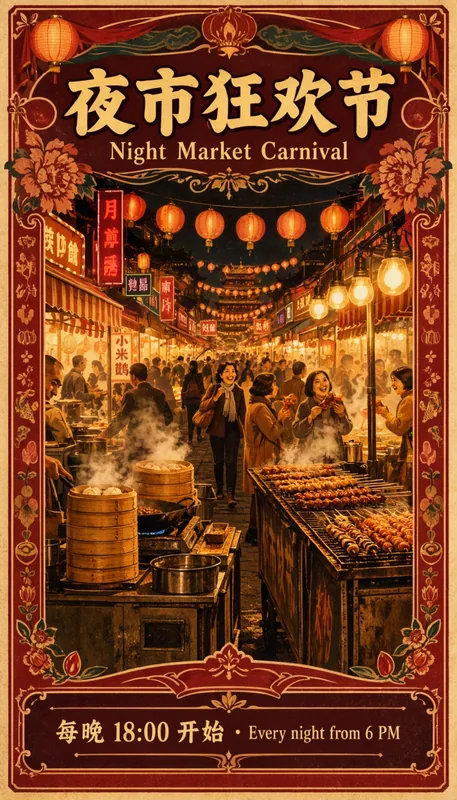
- Strong: A vintage Chinese night market festival poster. Large bold title "夜市狂欢节" at the top with the English subtitle "Night Market Carnival" below it...
The second version tells the model the medium, the style, every piece of text and where it sits. That is what the strong version produced:
Prompt
A vintage Chinese night market festival poster. Large bold title "夜市狂欢节" at the top with the English subtitle "Night Market Carnival" below it. Warm red and gold palette, paper lanterns, steaming street food stalls, and a footer line reading "每晚 18:00 开始 · Every night from 6 PM".
Try this prompt2. Put the exact words in quotation marks
Every piece of text that should appear in the image goes inside quotation marks, exactly as it should appear: the same characters, punctuation and capitalization. OpenMOSS's prompt enhancer is told to keep visible text verbatim in its original language, including punctuation and line breaks, and you should do the same.
Two habits help:
- Write the real copy. "Headline here" or "some text" gets you placeholder-looking text. If you want a title, decide what it says.
- Quote only what should be rendered. A quoted phrase can be mistaken for text to put in the image, so if you quote something for another reason, rephrase it.
3. Describe in English, write the text in its own language
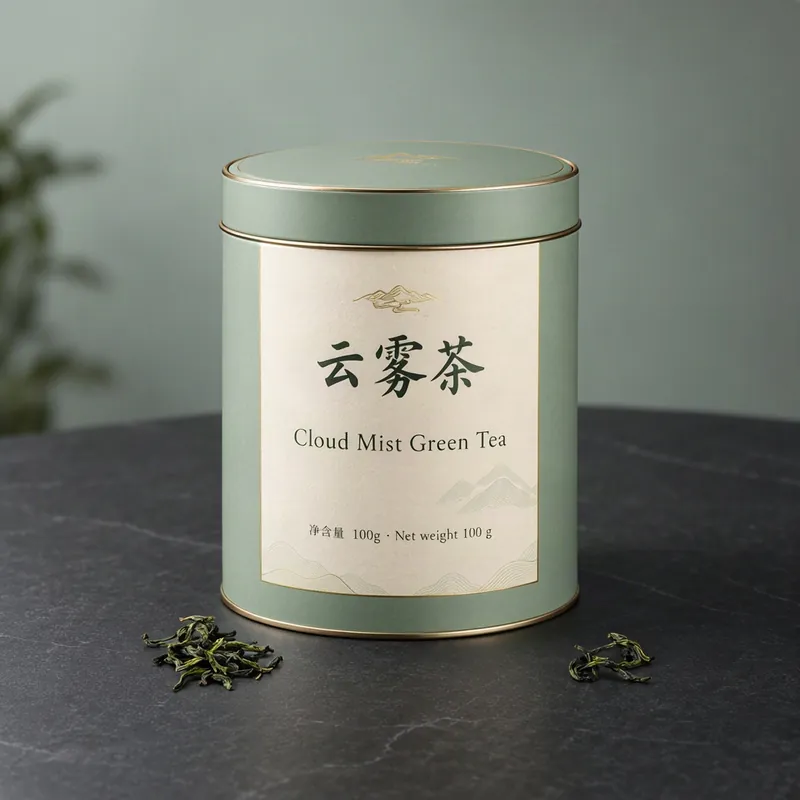
The pattern that works well is an English description with the visible text in whatever language it needs to be. All of our example prompts follow it:
Prompt
A product photo of a premium round tea tin on a slate surface. The cream label reads "云雾茶" in large brush lettering with "Cloud Mist Green Tea" below it, and small text "净含量 100g · Net weight 100 g". Soft studio light, a few tea leaves scattered nearby, muted green and gold packaging.
Try this promptA prompt written entirely in Chinese works too. The first example prompt in the official user guide is all Chinese, including a long handwritten passage on a glass board.
4. Control line breaks yourself
MOSS-Image breaks lines automatically, but the user guide warns that the result may not match what you expect. When it matters where a line ends, put the line breaks in the prompt: either real new lines or \n. In our generator, just press Enter inside the quoted text.
This is the official example from the model cards, a sticky note with three handwritten lines:
Prompt
A wide view of a refrigerator beside a kitchen counter with a fruit bowl. A small sticky note on the refrigerator door is handwritten in Chinese: "记得买牛奶和鸡蛋! 牛奶两盒,鸡蛋一打。 顺便带一袋面包。"
Try this prompt5. Give the text a hierarchy, and room
A poster is not one block of text. Tell the model the role, size and position of each piece: a large title at the top, a smaller subtitle below it, a thin footer line at the bottom. The prompt enhancer skill asks for the same: a clear reading order, relative prominence, coherent groups and text that is readable at the chosen size.
Small text needs pixels. If a long line of small print breaks up, make that text larger in the design, cut it down, or switch to HD (about 2 MP) in our generator.

Prompt
A wide conference banner with the title "AI 开发者大会 2026" and the subtitle "AI Developer Summit". A clean blue and violet gradient background, abstract circuit lines, and a bottom row reading "10月28日 · 深圳 · Oct 28 · Shenzhen".
Try this prompt6. Say what should not be there
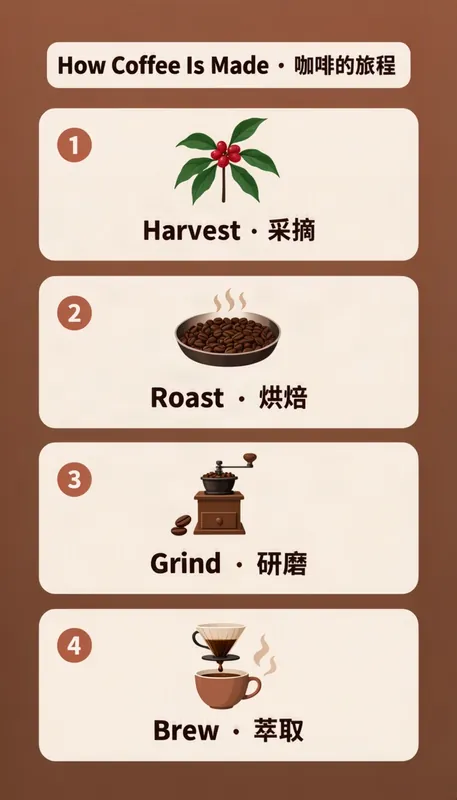
If you want only the text you listed, say so. The infographic below ends with "with no other text" to keep stray labels out:
Prompt
A modern infographic titled "How Coffee Is Made · 咖啡的旅程" showing four numbered steps: Harvest, Roast, Grind, Brew. Flat vector icons, a warm brown and cream colour scheme, and only a short Chinese and English label under each step, with no other text.
Try this promptWhen you run the model yourself, you can also use a negative prompt. The user guide recommends these tags:
nsfw, worst quality, bad anatomy, watermark, jpeg artifactIn the Python pipeline, an empty negative prompt is the default; guidance then uses negative-branch layer skipping instead.
Tag prompts
MOSS-Image also understands tag sequences, the style common for anime and illustration prompts. The user guide recommends this order:
Quality -> Score -> Meta -> Year -> Character -> Series -> Artist -> GeneralFor images with text, a natural-language caption is the easier way to say exactly what the text is and where it goes.
When to switch to a layout
Prose is good at describing how things look and roughly where they are. When exact placement matters, for example a title in a precise band or three labels lined up over three products, use a layout instead: a JSON prompt with a bounding box for every element. The ComfyUI docs call boxes more reliable than describing positions in prose. Our MOSS-Image JSON layout tutorial shows the format.
Prompt expansion
You do not always have to write the long version yourself.
- On mossimage.studio, prompt expansion is on. Before generating, it plans a structured layout from your prompt and keeps the visible text you asked for. A short prompt still works; a precise prompt gives you the most control.
- In ComfyUI, the text-to-image templates include a prompt upsampler that turns a short idea into a full caption. Set
enable_prompt_upsamplertofalseto send your prompt unchanged. See our ComfyUI workflow guide. - With an AI agent, OpenMOSS's prompt enhancer skill turns an idea into a detailed caption or a layout.
Checklist
- Describe the finished image: medium, style, subject, setting, light.
- Put every piece of visible text in quotation marks, exactly as it should appear.
- Say where each piece of text goes and how big it is.
- Write the description in English and the text in its own language.
- Add line breaks yourself where they matter.
- Say "no other text" if you want nothing else.
- Switch to a layout when exact positions matter.
Ready to try? Open the MOSS Image AI generator, or load any prompt on this page with its "Try this prompt" button.
Sources
- MOSS-Image user guide
- MOSS-Image prompt enhancer skill
- MOSS-Image-SFT model card
- MOSS-Image in ComfyUI, ComfyUI documentation
Author

Categories
More Posts
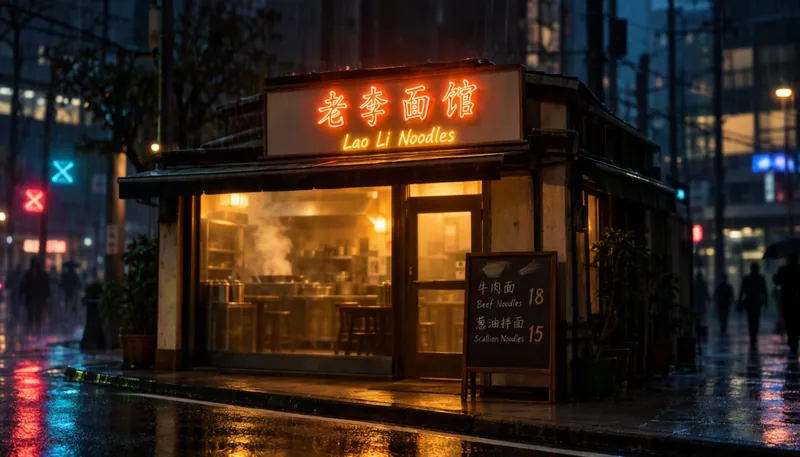
MOSS-Image Base vs SFT: Which Checkpoint Should You Use?
MOSS-Image ships as two checkpoints, Base and SFT. What SFT changes, which one to pick for making images or training LoRAs, and how to run each in ComfyUI or Python.
MOSS-Image ComfyUI Workflow: Models, Templates and Settings
Run MOSS-Image in ComfyUI: the four official templates, which model files to download and where they go, and the steps, CFG and SLG settings that matter.
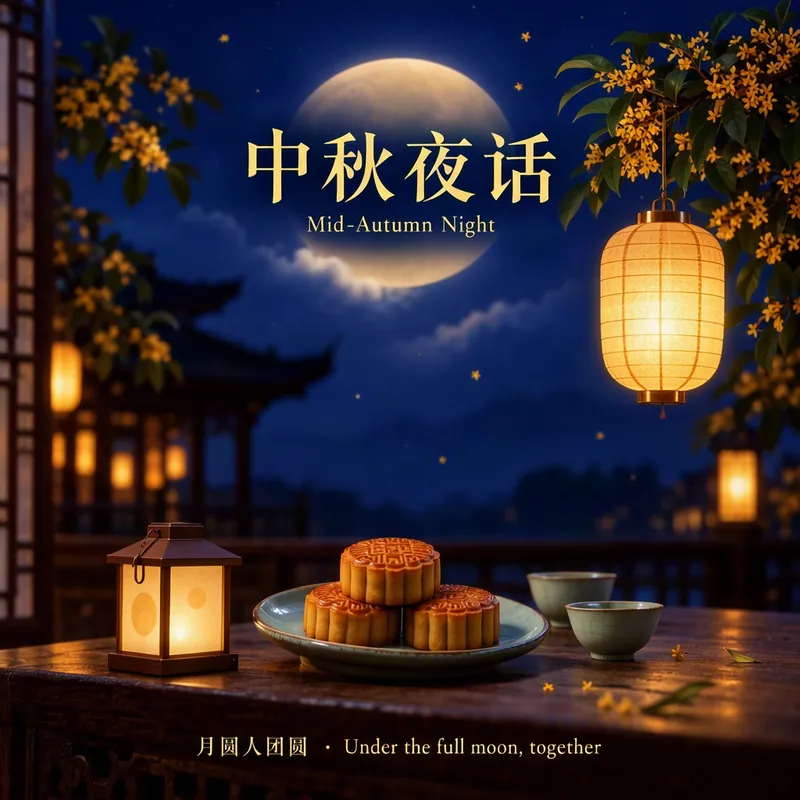
MOSS-Image JSON Layout Tutorial: bbox, yxyx and Coordinates
Write MOSS-Image layout prompts by hand: the summary and items fields, yxyx bounding boxes in centered pixel coordinates, a converter, and examples to copy.