
MOSS-Image ComfyUI Workflow: Models, Templates and Settings
Run MOSS-Image in ComfyUI: the four official templates, which model files to download and where they go, and the steps, CFG and SLG settings that matter.
This is an unofficial guide. MossImage Studio is a community site and is not affiliated with OpenMOSS. The facts below come from the official MOSS-Image repository, the Comfy-Org model files and the ComfyUI documentation, checked on October 25, 2026.
MOSS-Image is the open-weights text-to-image model OpenMOSS released on October 16, 2026: a 5B single-stream diffusion transformer (DiT) under the Apache-2.0 license, best known for rendering Chinese and English text and for following JSON layouts. ComfyUI supports it natively, so you do not need a custom node pack.
This guide covers the four official ComfyUI templates, the model files and where they go, and the settings worth changing. If you just want to see what the model can do first, our MOSS Image AI generator runs MOSS-Image-SFT in the browser with the official 50 steps and CFG 3.
What you need
- ComfyUI 0.42.0 or later. The MOSS-Image templates need it. Native support was merged into ComfyUI on October 16 (pull request #17095). The official repository notes that the
v0.41.3release did not include it, so an older install will report missing nodes. - A GPU with room for the int8 checkpoints, which the templates load by default. bf16 builds are in the same repository if you have more VRAM.
- About 13 GB of disk for the files the SFT templates use, or about 18.4 GB with the Base checkpoint too.
The four official templates
In ComfyUI, open Template and search for MOSS-Image. Four templates ship, and all four run the same subgraph, so you can open it to reach the loaders, the sampler and the canvas size.
| Template | Checkpoint | What it does |
|---|---|---|
| MOSS-Image: Text to Image | SFT | Prompt only. A prompt upsampler expands a short idea into a full caption before sampling. |
| MOSS-Image Base: Text to Image | Base | The same graph with the Base checkpoint, to compare raw output or as a starting point for LoRA work. |
| MOSS-Image: Layout-Guided Text to Image | SFT | Prompt plus boxes you draw. Each box has its own caption, and text boxes render their text. |
| MOSS-Image Base: Layout-Guided Text to Image | Base | The layout workflow with Base, to compare how both checkpoints follow the same boxes. |
You can also download each template as JSON from Comfy-Org/workflow_templates and drag it onto the canvas.
Not sure which checkpoint you want? Read MOSS-Image Base vs SFT. The short version: SFT for making images, Base for training.
Download the model files
All ComfyUI-format files are in Comfy-Org/MOSS-Image on Hugging Face. The templates load these four:
| File | Folder | Size | Role |
|---|---|---|---|
moss_image_sft_int8_convrot.safetensors | models/diffusion_models/ | 5.41 GB | SFT checkpoint, used by both SFT templates |
moss_image_base_int8_convrot.safetensors | models/diffusion_models/ | 5.41 GB | Base checkpoint, used by both Base templates |
qwen3.5_9b_w4a8_gptq.safetensors | models/text_encoders/ | 7.34 GB | Qwen3.5 9B text encoder, loaded by CLIPLoader with type moss_image |
flux2-vae_small.safetensors | models/vae/ | 0.25 GB | FLUX.2 small VAE |
You only need the Base checkpoint if you plan to use the Base templates.
ComfyUI/
└── models/
    ├── diffusion_models/
    │   ├── moss_image_sft_int8_convrot.safetensors
    │   └── moss_image_base_int8_convrot.safetensors
    ├── text_encoders/
    │   └── qwen3.5_9b_w4a8_gptq.safetensors
    └── vae/
        └── flux2-vae_small.safetensors
The same repository also has:
- bf16 builds of both checkpoints, 10.16 GB each:
moss_image_sft_bf16.safetensorsandmoss_image_base_bf16.safetensors. If you have the VRAM, swap the checkpoint in the diffusion model loader (UNET Loader). - Larger builds of the text encoder (int8 at 9.75 GB, bf16 at 19.31 GB) and the full
flux2-vae.safetensors. - A color and depth control LoRA,
moss_image_color_depth_control.safetensors, formodels/loras/. It is repackaged from darask0/MOSS-Image-color-depth-control.
Run your first image
- Update ComfyUI to 0.42.0 or later. If you cannot find the MOSS-Image templates in the library, your install is too old.
- Go to Template, search for MOSS-Image and open MOSS-Image: Text to Image.
- Put the four files above in their folders, then refresh or restart ComfyUI so the loaders can see them.
- Type your idea into the positive prompt and click Queue. The caption the model actually received appears in the
Preview Anynode.
Because the text-to-image template runs your prompt through the upsampler, a one-line idea works. This prompt is already a full caption, and it is the one behind the image at the top of this page:

Prompt
A wide conference banner with the title "AI 开发者大会 2026" and the subtitle "AI Developer Summit". A clean blue and violet gradient background, abstract circuit lines, and a bottom row reading "10月28日 · 深圳 · Oct 28 · Shenzhen".
Try this promptSettings that matter
The templates are tuned for speed. OpenMOSS's own recommendations are slower, and they are what the official examples use:
| Setting | Template default | Official recommendation |
|---|---|---|
| Steps | 25 | 50 or more |
| CFG | 2.5 | 3; for short prompts, raise it (the user guide suggests 3 to 6) |
| Sampler | er_sde | Euler (flow matching) |
| Shift | 5, built into the native model | 5 |
| Skip layer guidance | On, layer 22 | Negative-branch skipping at layer 22 |
| Canvas | 1 MP | 1, 1.5 or 2 MP, any aspect ratio in multiples of 16 |
| Negative prompt | nsfw, worst quality, bad anatomy, watermark, jpeg artifact | The same tags, or empty |
A few notes on these:
- If a result looks undercooked, switch to 50 steps at CFG 3 before you change anything else. The ComfyUI docs give the same advice.
- Skip layer guidance (SLG) is on by default at layer 22, the layer OpenMOSS recommends. The subgraph node has an
SLGtoggle. The official user guide says that turning it off makes images look very realistic but can make some details collapse. - Canvas size. MOSS-Image is trained for 1 to 2 megapixels and extrapolates from about 0.25 MP (512×512) to 4 MP. Width and height must be multiples of 16. The
ResolutionSelectornode picks the aspect ratio and the megapixel count for you. - Same seed, different image. ComfyUI's native scheduler does not use the training-grid snapping of the official Python pipeline, so the same seed and settings will not reproduce a Diffusers image exactly. That is expected.
The prompt upsampler
The text-to-image templates include a prompt upsampler that rewrites a short request into a full scene caption before sampling. It runs on the Qwen3.5 text encoder the model already loads, so there is nothing extra to download.
When you want full control of the wording, set enable_prompt_upsampler to false on the subgraph node. Your prompt then goes to the model unchanged. Either way, Preview Any shows the caption that was used, so you can compare.
Writing prompts by hand? The MOSS-Image prompt guide covers how to get clean Chinese and English text, line breaks included.
Layout-guided generation
The two layout templates add a pair of nodes:
- Create Bounding Boxes: drag one box per element and type a caption for each box. For a text box, type the text you want rendered.
- MOSS-Image Layout Prompt: turns your boxes into the layout prompt the model reads. Your overall scene prompt is used as well.
Boxes are the most reliable way to put a title, a product shot or a block of text exactly where you want it. Describing positions in prose works less well. MOSS-Image reads layouts as JSON with a bounding box per element; if you want to write or generate that JSON yourself, see the MOSS-Image JSON layout tutorial.
Native support vs the repository plugin
Before native support landed, the official repository shipped a ComfyUI plugin with a MOSS-Image HF Loader node that loads a local Hugging Face / Diffusers directory. It is still there, but the repository now recommends the native path: the built-in Load Diffusion Model, CLIP Loader (type moss_image) and Load VAE nodes, with no plugin. Some older pages, including the model cards on Hugging Face, still tell you to install a plugin from ComfyUI Manager. The repository's ComfyUI README is newer.
If you are moving an old plugin workflow over:
- Import a native workflow instead of swapping only the model loader. The loader nodes are different.
- Do not carry over the plugin workflow's
ModelSamplingSD3node unchanged: the native model uses a different timestep multiplier. To change the shift of the native model, useModelSamplingAuraFlowwith multiplier 1.
Troubleshooting
- Missing nodes, or no MOSS-Image templates. Update ComfyUI. The templates need 0.42.0 or later, and a brand-new core node can reach the nightly build before a stable release. ComfyUI Cloud updates after stable releases.
- Undercooked results. Go to 50 steps and CFG 3. With a very short prompt, leave the upsampler on or raise CFG.
- Vertical color banding with SFT. Community LoRAs exist to reduce it. The official README lists MOSS-Image-SFT-DeBand by MATLOWAI, which comes with ComfyUI preset workflows. Its model card explains the trade-off between less banding and changes to fine detail.
- Running in FP16 instead of BF16. MOSS-Image-FP16-fixed by KBlueLeaf, also listed in the official README, provides FP16-compatible weights for Base and SFT in Diffusers and ComfyUI formats.
- Too slow. ComfyUI-Spectrum-MOSS accelerates sampling, and there is a community few-step distillation (see the next section).
Is there a MOSS-Image Turbo?
Not from OpenMOSS, as of October 25, 2026. The official family is MOSS-Image-Base and MOSS-Image-SFT, and the user guide says few-step distillation methods such as DMD are still in the works. The "turbo" checkpoints and LoRAs you may come across are community projects. One that the official README lists is lodestones' MOSS-Image-SFT-8-steps-dmd, an 8-step DMD distillation of SFT with LoRA adapters for ComfyUI. Follow each model card's recommended settings, since few-step models usually need different steps and CFG.
Training a LoRA
Train on Base. It has no post-training or CFG distillation, which OpenMOSS says is meant to keep the full training signal and make LoRA training easier. Their advice is to keep the text encoder frozen. Two trainers listed in the official README support both checkpoints:
- KohakuMossTrainer: full fine-tuning and LyCORIS (including LoRA), with adapter training on as little as 6 GB of VRAM, on Windows and Linux.
- DiffSynth-Studio: full fine-tuning and LoRA training.
Try MOSS-Image without installing anything
No GPU, or want to test a prompt before you download 13 GB of files? Our free MOSS-Image generator runs the SFT checkpoint online. Click the button below to load this prompt into it:
Prompt
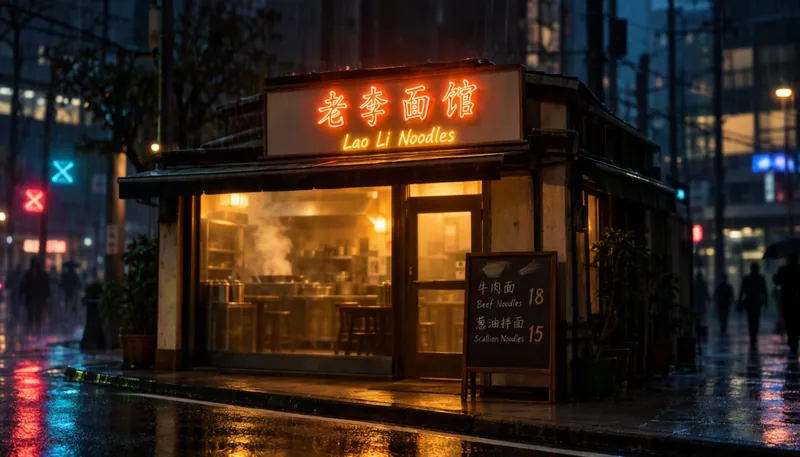
A rainy evening street scene in front of a small noodle shop with a glowing neon sign reading "老李面馆" and the English line "Lao Li Noodles" below it. A hand-written menu board next to the door lists "牛肉面 Beef Noodles 18" and "葱油拌面 Scallion Noodles 15". Warm window light, wet pavement reflections.
Try this promptSources
- OpenMOSS/MOSS-Image on GitHub and its ComfyUI README
- MOSS-Image user guide
- Comfy-Org/MOSS-Image on Hugging Face
- MOSS-Image in ComfyUI, ComfyUI documentation
Author

Categories
More Posts
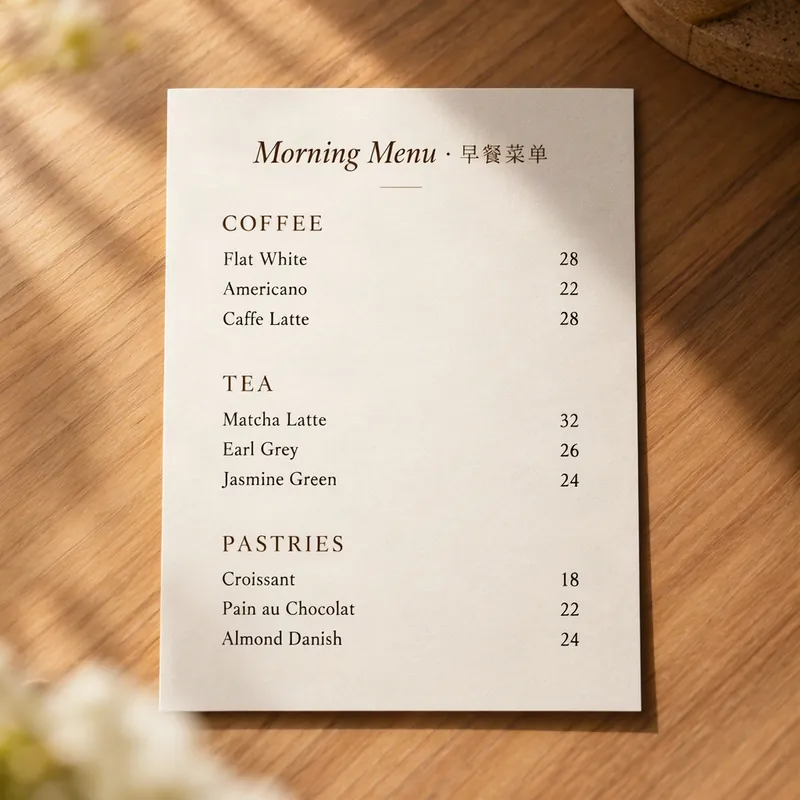
MOSS-Image Prompt Guide: Chinese and English Text in Images
Write MOSS-Image prompts that render clean Chinese and English text: describe the finished image, quote the exact words and control line breaks. With examples to try.
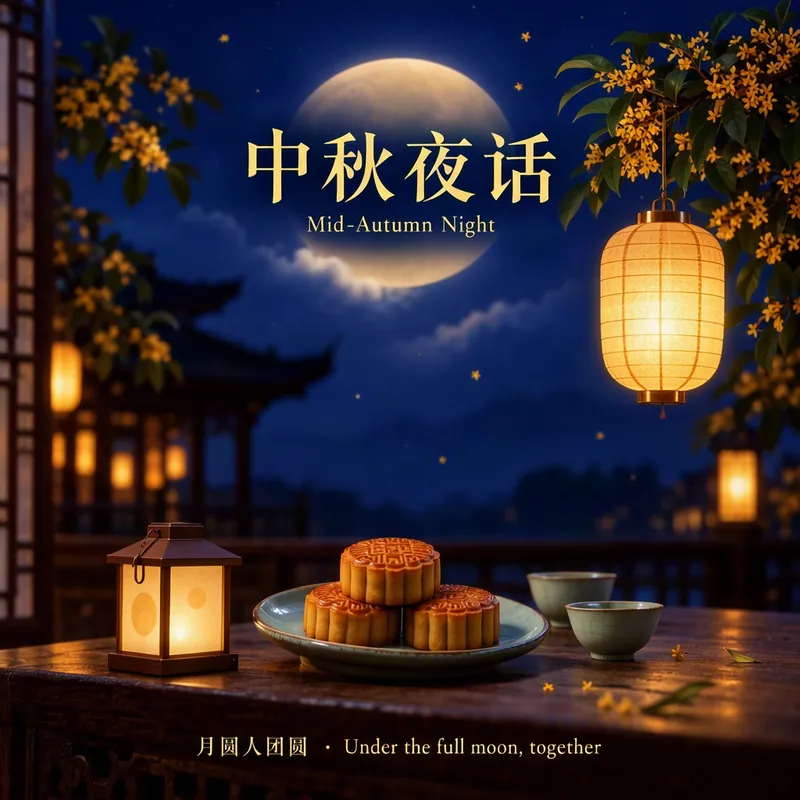
MOSS-Image JSON Layout Tutorial: bbox, yxyx and Coordinates
Write MOSS-Image layout prompts by hand: the summary and items fields, yxyx bounding boxes in centered pixel coordinates, a converter, and examples to copy.
MOSS-Image Base vs SFT: Which Checkpoint Should You Use?
MOSS-Image ships as two checkpoints, Base and SFT. What SFT changes, which one to pick for making images or training LoRAs, and how to run each in ComfyUI or Python.